How do I change my payment amount?
Some Flexible Payble plan types support editing the future payment amount.
Mentionable items
It's important to note that not every plan has the option to edit the payment amount, and at times you may still be required to pay over this amount to ensure that all due amounts are paid by the due dates to avoid penalties and interest.
Council may increase your amount during periods of the year or at the start of the new year to ensure that scheduled amounts are enough to pay any outstanding amounts by the time they are due. You will be notified of any changes to your payment amount via SMS or email.
How-to
To make changes or view your plan in Payble you will need to sign in using the same authentication method you used when setting up your plan (mobile or email). You will not be able to view your plan if you haven’t authenticated with the exact same method.
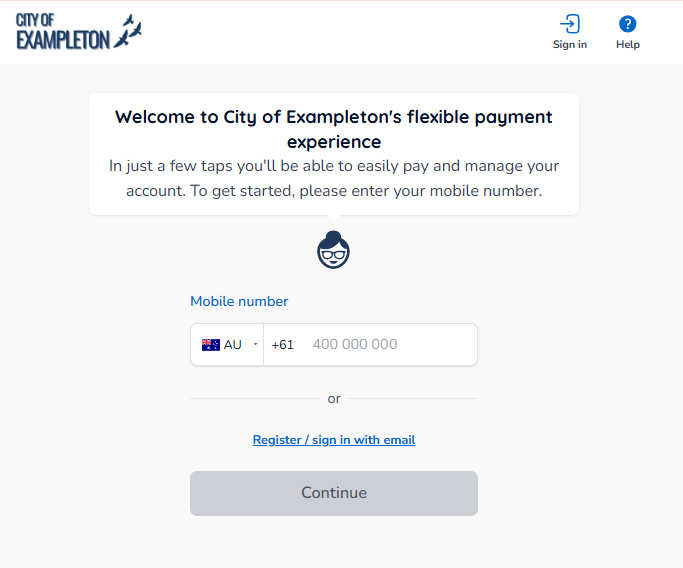
If your plans and payments don’t appear right away, click your Council’s logo at the top of the page to return to your profile, or the Home button.
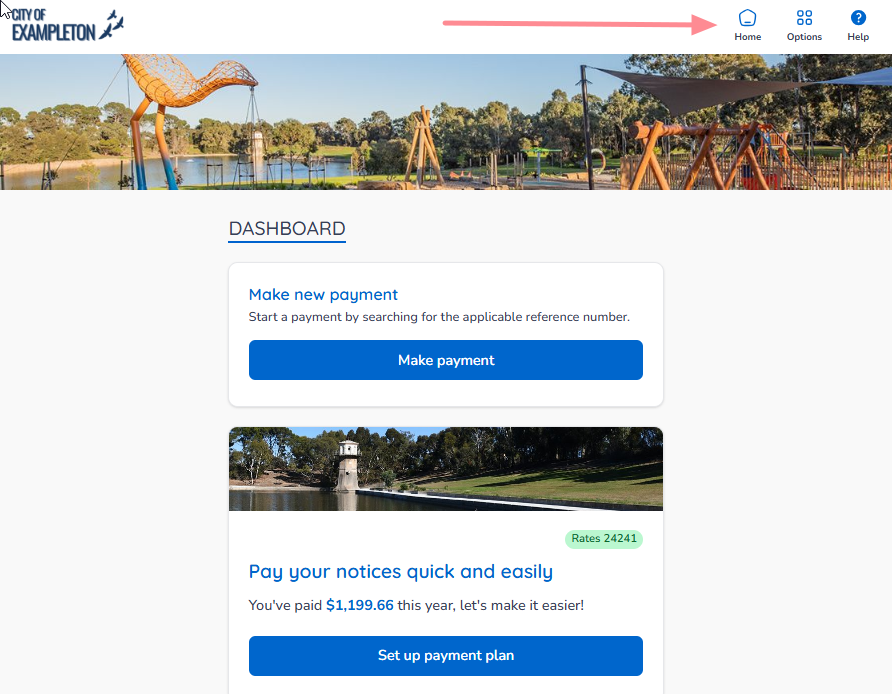
On the desktop browser, the Home button is located on the top banner.
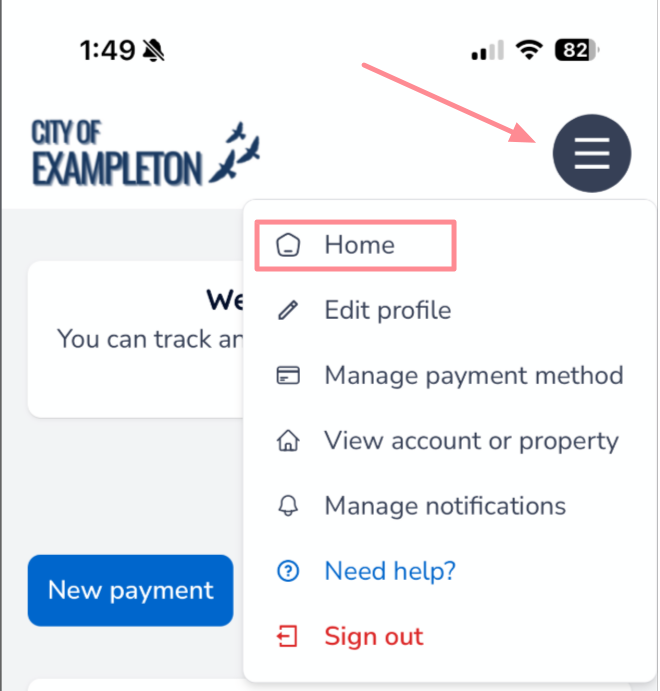
On a mobile or tablet browser the Home button is located under the menu button.
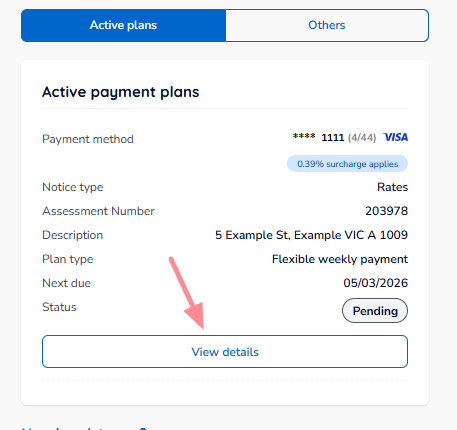
Once you are on your Home page, click the Active Plans box.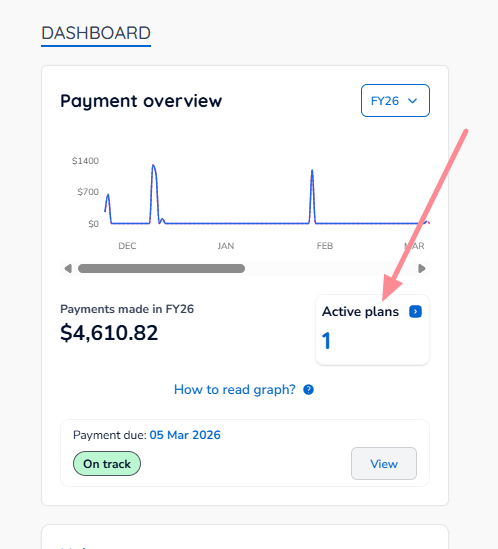
Scroll to the plan you want to modify.
Click the View details button on the plan.
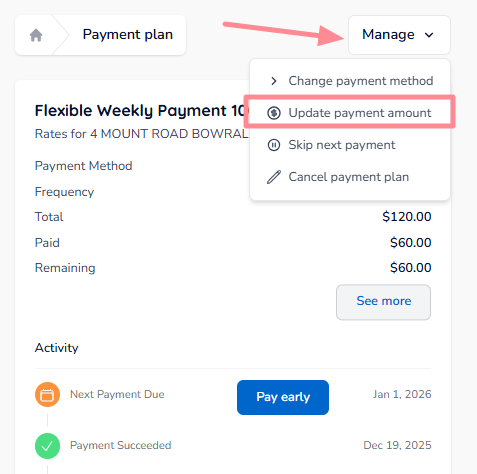
From the Manage tap the Update payment amount option.
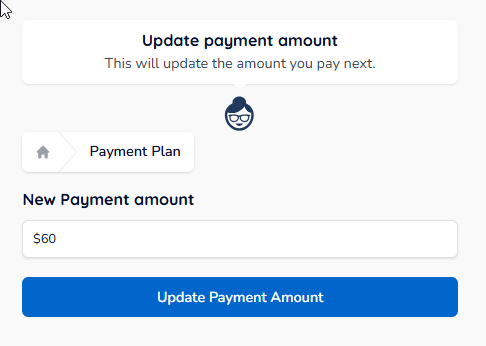
Enter the new amount you would like to pay on each instalment moving forward, and then click 'Update Payment Amount' to confirm your changes.
Was this article helpful?
That’s Great!
Thank you for your feedback
Sorry! We couldn't be helpful
Thank you for your feedback
Feedback sent
We appreciate your effort and will try to fix the article