How do I cancel a payment plan?
This guide explains how to cancel a payment plan directly in Payble.
Additional Information
| Before you start: You can cancel your payment plan yourself in Payble — there’s no need to contact your bill provider. In some cases, you may have other options instead of cancelling, such as changing your payment method or skipping a payment, but those options depend on your plan type. |
How-to
To make changes or view your plan in Payble, sign in using the same authentication method you used when setting up your plan (mobile or email). You will not be able to view your plan if you haven’t authenticated with the exact same method.
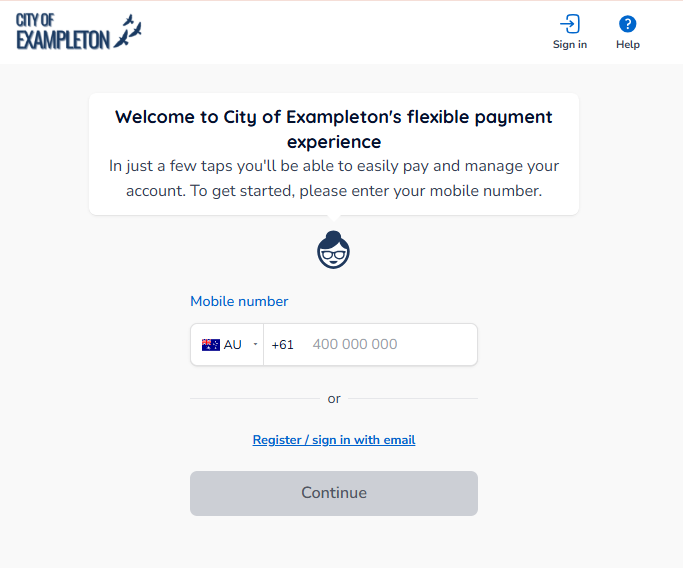
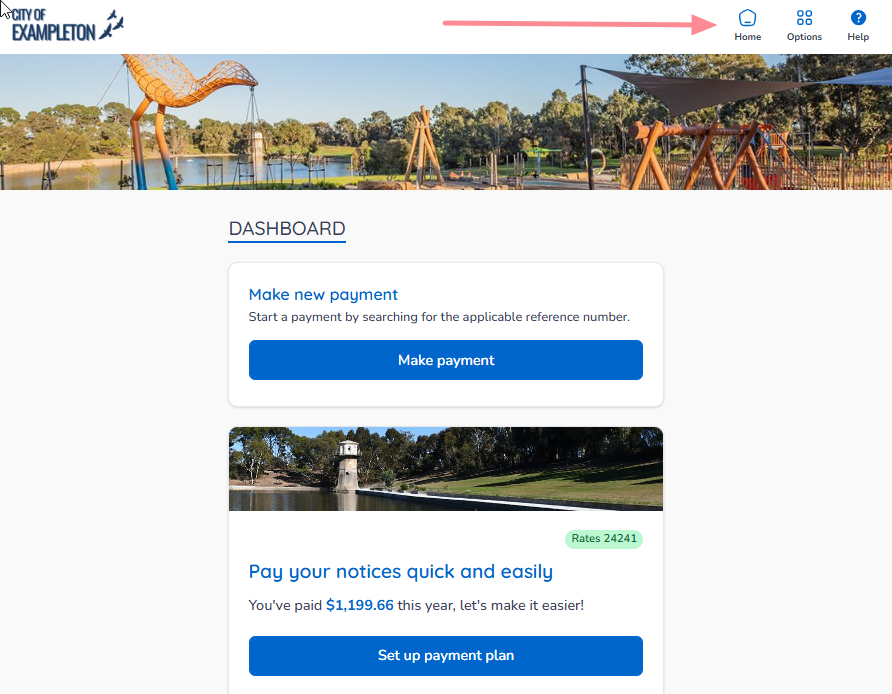
If your plans and payments don’t appear right away, click your council's logo at the top of the page to return to your profile, or use the Home button. On a desktop browser, the Home button is located on the top banner.
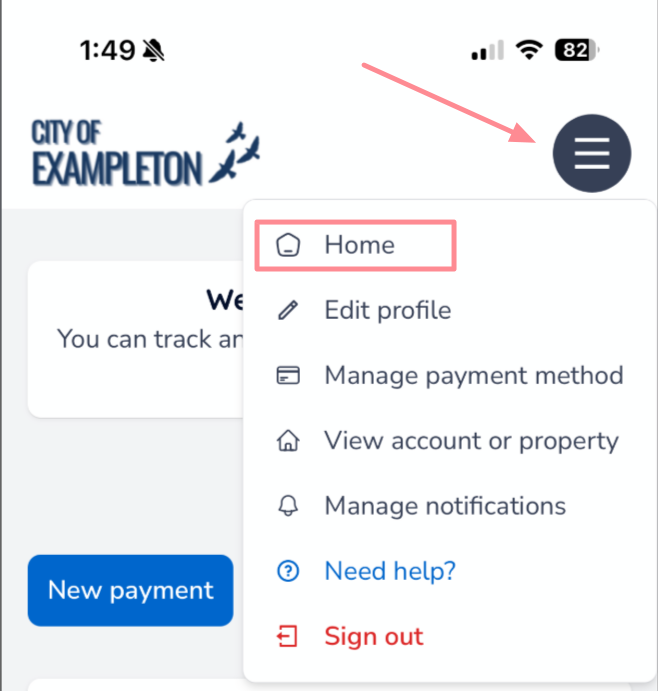
On a mobile or tablet browser, the Home button is located under the menu button.
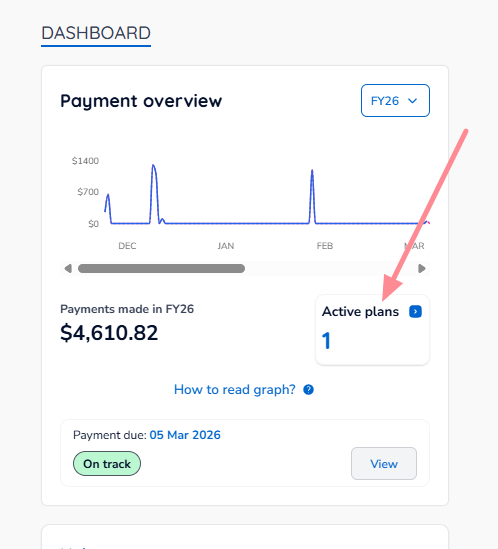
Once you are on your Home page, click the Active Plans box.
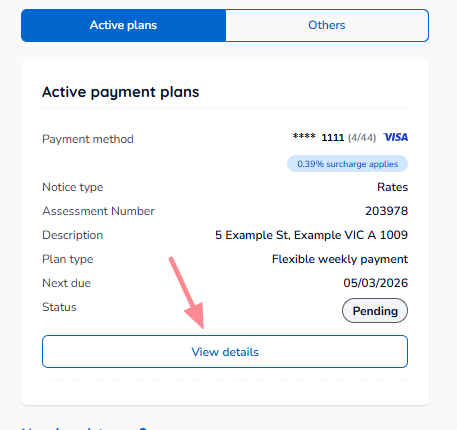
Scroll to the plan you want to modify, then click View details.
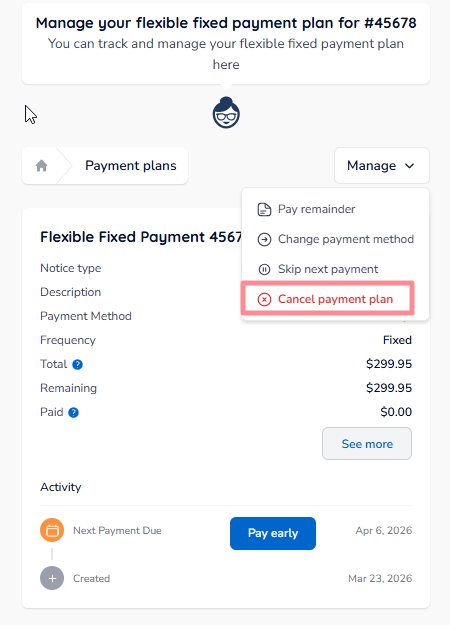
Click the Manage button, then select Cancel Payment Plan from the drop-down menu.
You’ll be asked to select a reason for the cancellation. Depending on your council, the list of reasons might vary from the example below. Choose a reason from the list, or enter your own using the Other option.
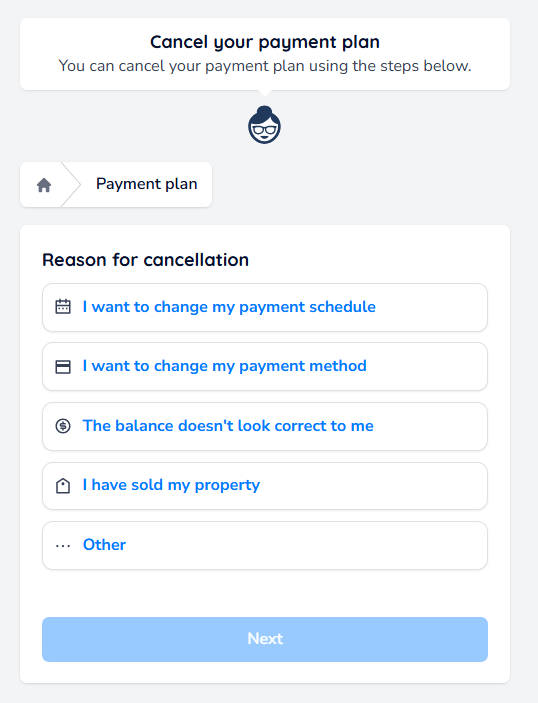
Click Next to continue.
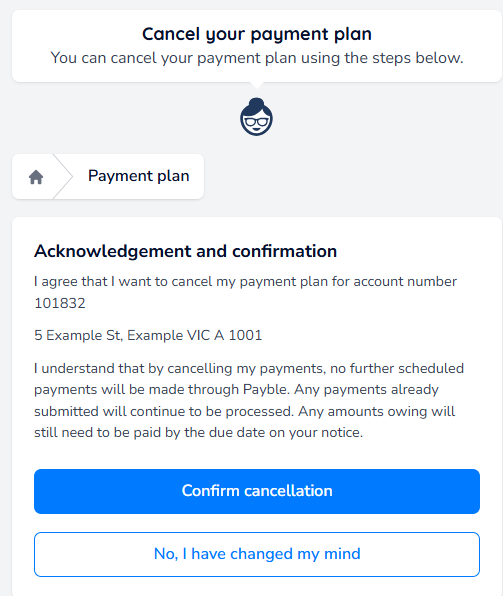
| Important: Your payment plan will be cancelled, and the reason you provided will be visible to your bill provider. |
Was this article helpful?
That’s Great!
Thank you for your feedback
Sorry! We couldn't be helpful
Thank you for your feedback
Feedback sent
We appreciate your effort and will try to fix the article