How do I add a new payment method to my profile?
This article explains how to add a new payment method to your Payble profile, and assign it to a plan (or all your plans) during the process.
Additional Information
Before you start:
|
How-to
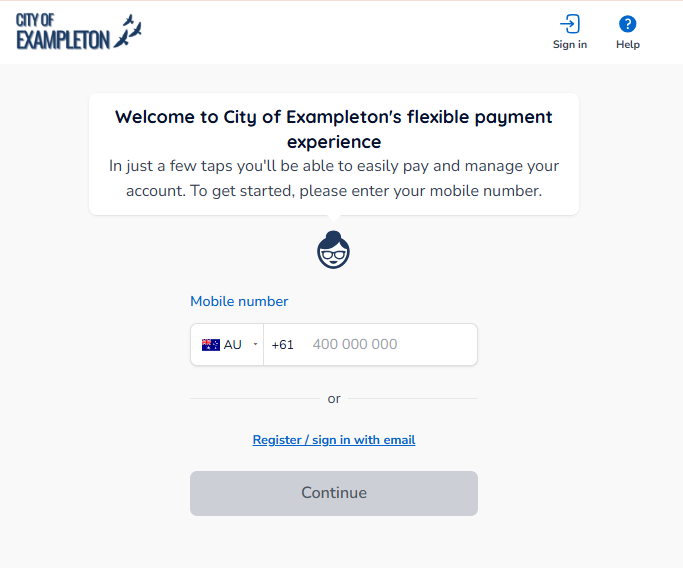
To make changes or view your plan or payment methods in Payble, sign in using the same authentication method you used when setting up your plan (mobile or email). You will not be able to view your plan if you haven’t authenticated with the same method.
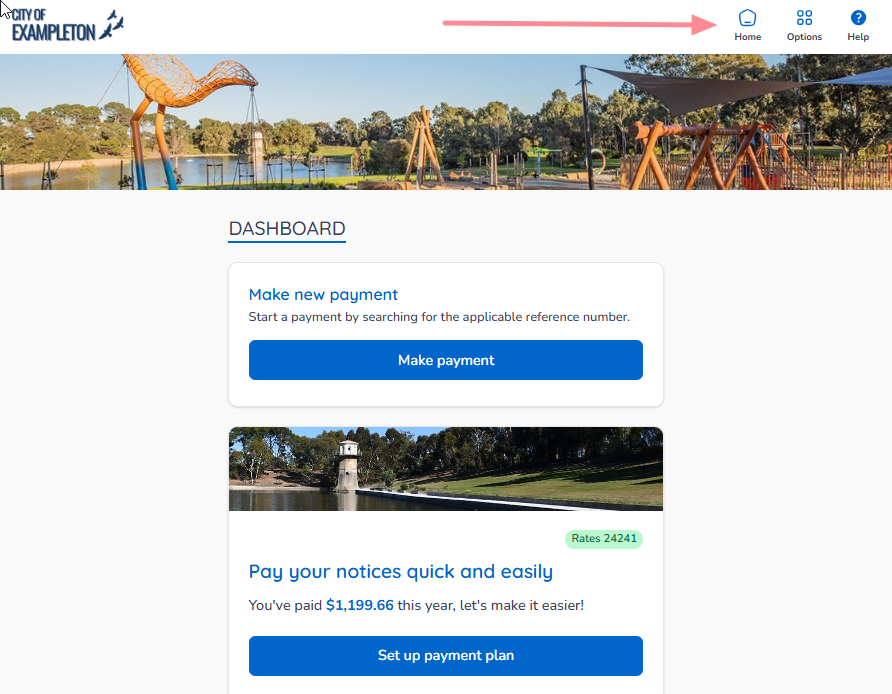
If your plans and payments don’t appear right away, click your council’s logo at the top of the page to return to your profile, or use the Home button. In a desktop browser, the Home button is located on the top banner.
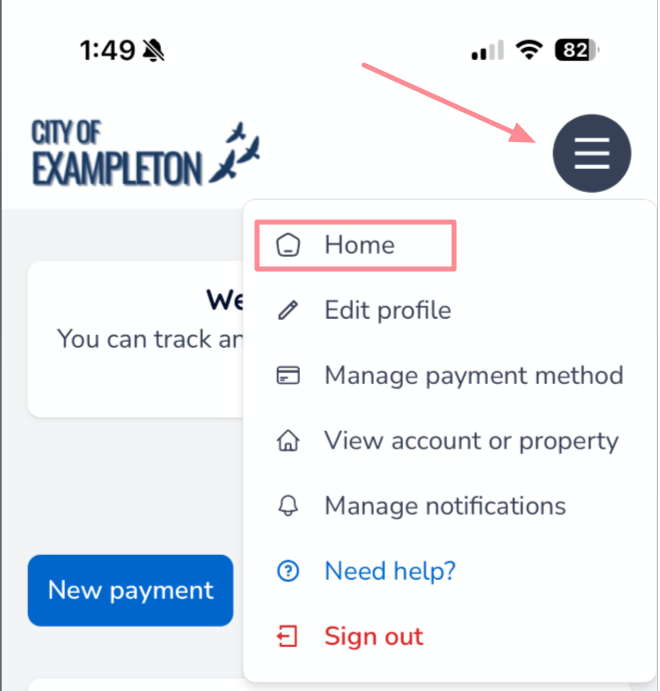
On a mobile or tablet browser, the Home button is located under the menu button.
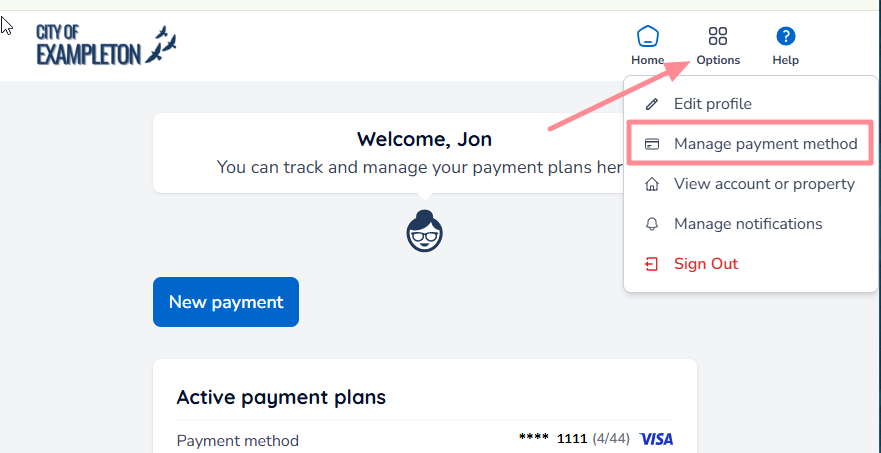
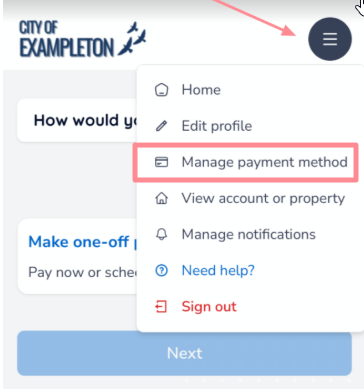
From the Options button in the top-right corner of the page, select Manage payment method.
If you are using a mobile device, the button is displayed as shown below.
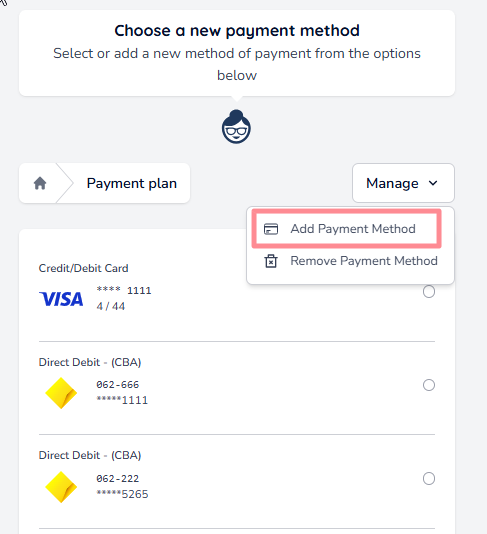
A listing of your payment methods will appear. Open the Options menu and select Add Payment Method.
Enter your new payment method details — the form will vary depending on the type (card/debit or bank account) you select.
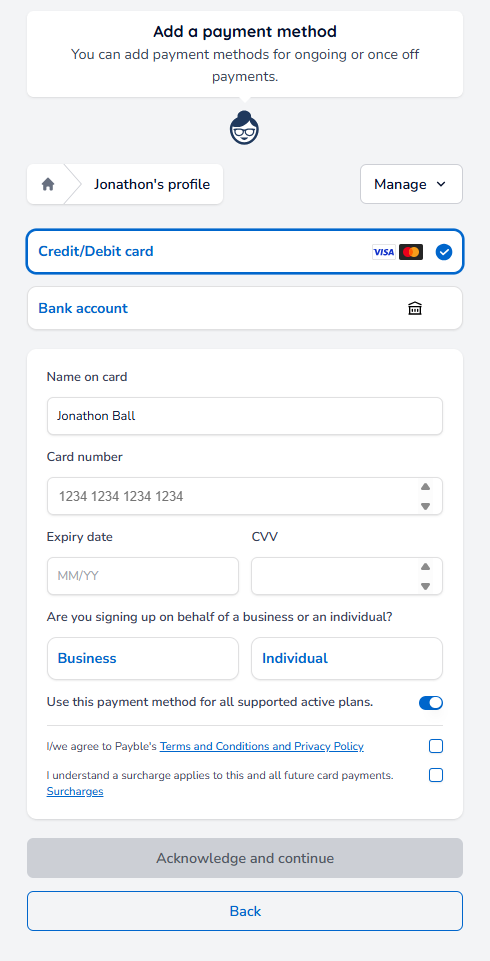
After entering your card or bank account details, you will need to:
- Toggle whether to apply this payment method to all active plans, or specific plans only.
- Agree to Payble’s Terms & Conditions and accept any surcharges, if applicable.
- If adding a bank account, agree to the biller’s Direct Debit Request Service Agreement (DDRSA).
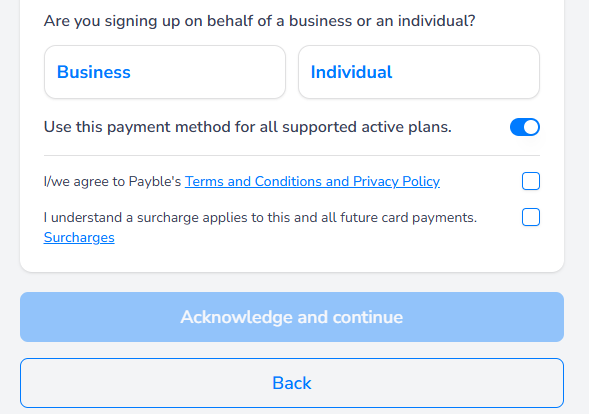
Click Acknowledge & Confirm.
| Tip: You may still need to assign the new method to specific plans or remove old ones — see How do I remove a payment method? |
Was this article helpful?
That’s Great!
Thank you for your feedback
Sorry! We couldn't be helpful
Thank you for your feedback
Feedback sent
We appreciate your effort and will try to fix the article