How do I remove a payment method?
This guide explains how to remove a payment method from your Payble profile.
Before you get started
- You cannot remove a payment method if it’s linked to an active payment plan.
- If needed, add a new payment method and update your plan before continuing - add a new payment method
METHOD 1
To make changes or view your plan in Payble you will need to sign in using the same authentication method you used when setting up your plan (mobile or email). You will not be able to view your plan if you haven’t authenticated with the exact same method. 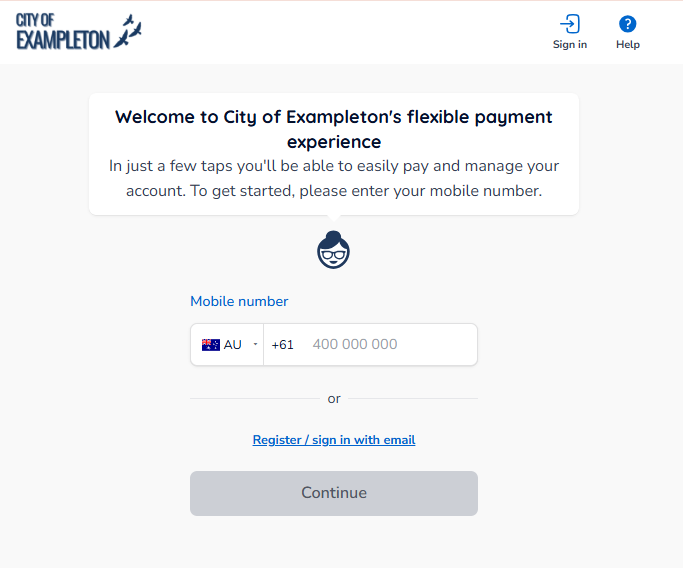
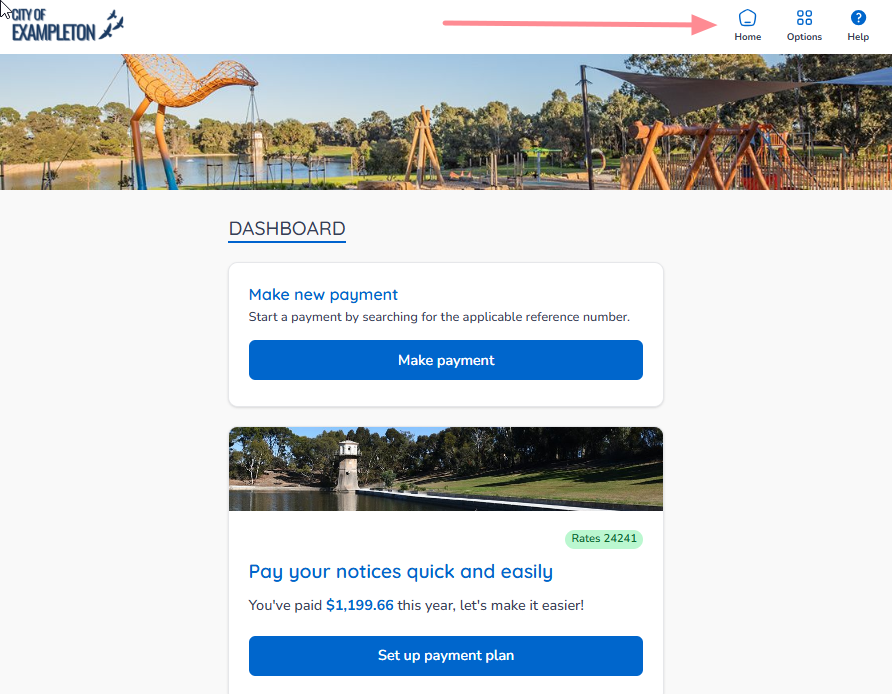
If your plans and payments don’t appear right away, click your Council’s logo at the top of the page to return to your profile, or the Home button.
Desktop browser the Home button is located on the top banner.
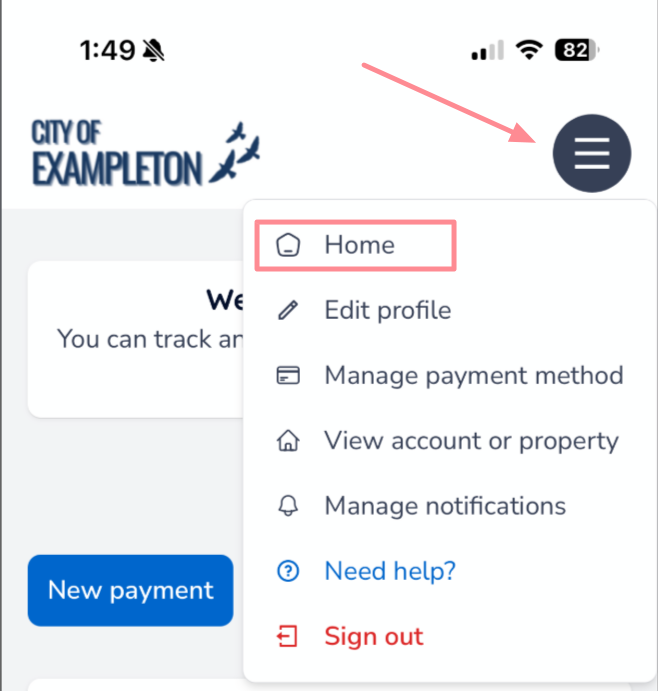
On a Mobile or tablet browser, the Home button is located under the menu button.
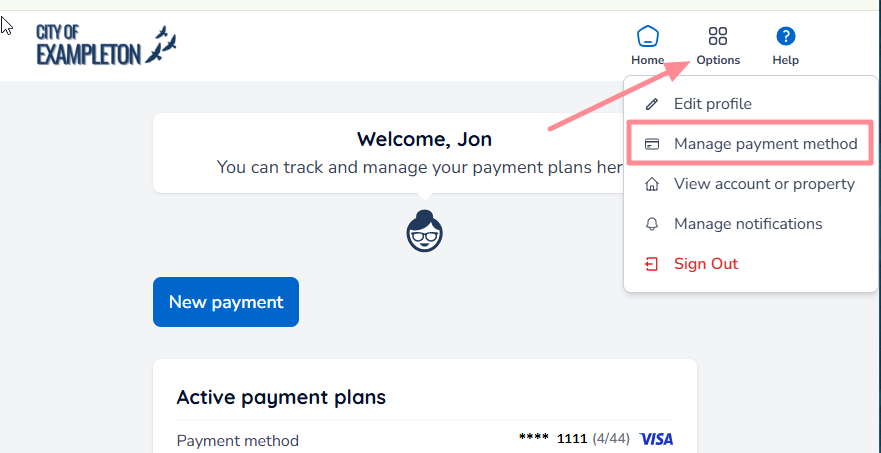
Next, click the Options in the top right corner of the page, then select Manage payment methods. If you are using a mobile device, the options button is shown in the previous image.
A listing of your payment methods will appear.
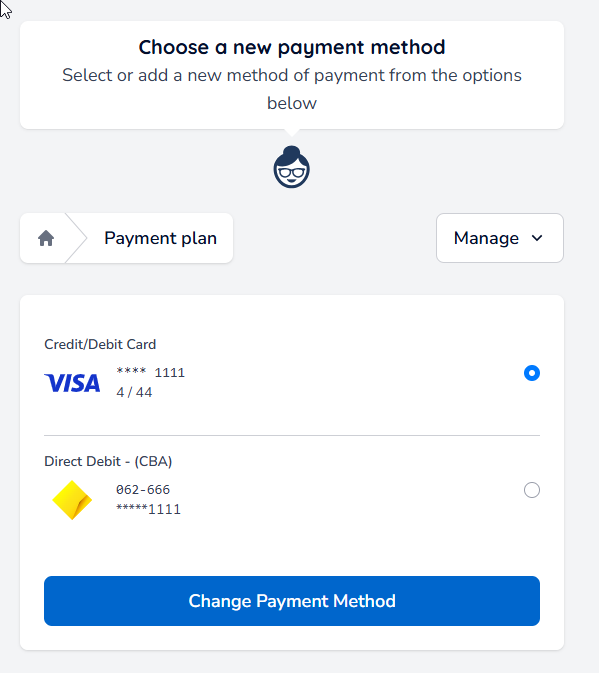
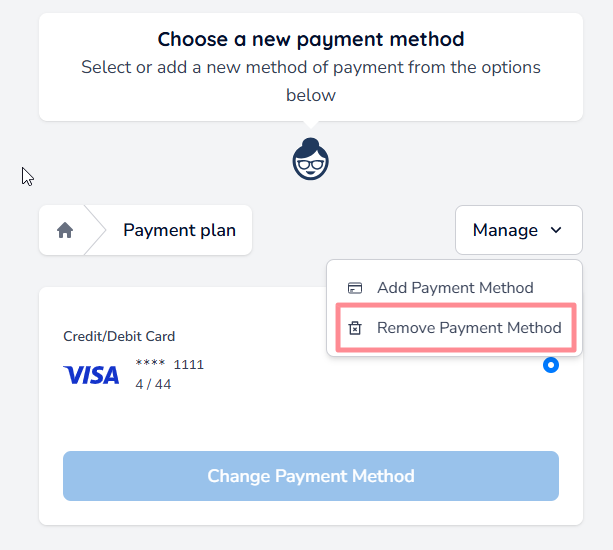
Next, click Manage, and then Remove Payment Method.
METHOD 2
After authenticating into Payble, click the Options button on the top banner, and then click Edit profile.
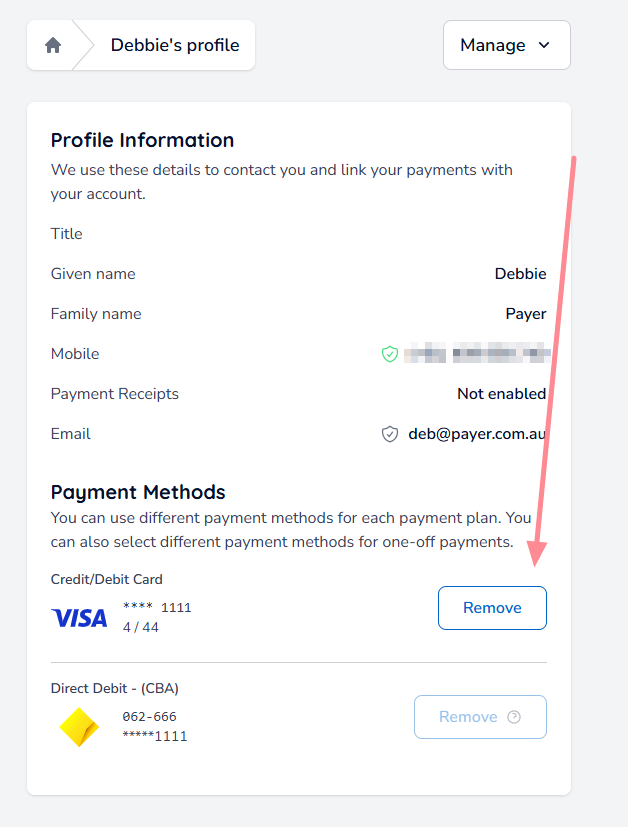
A view showing your profile details and the payment methods will appear. It's important to note that you are not be able to remove a payment method if it is attached to an active plan.
Click the Remove button to remove the payment method.
Was this article helpful?
That’s Great!
Thank you for your feedback
Sorry! We couldn't be helpful
Thank you for your feedback
Feedback sent
We appreciate your effort and will try to fix the article